 BitacoraBit
🌐 ES · EN · FR · IT · DE · PT · RU
Chapter 06
Maintenance, reminders and invoices
Chapter video
🎬 Video coming soon: we are filming it on board.
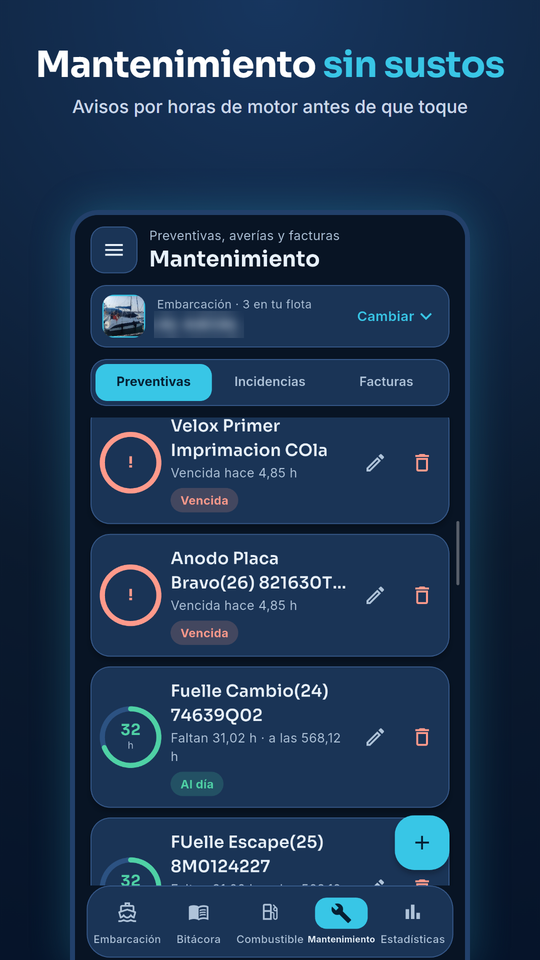
Reminders: alerts by engine hours (e.g. oil every 100 h). Each has a circular gauge: green up to date, amber within 15 h and red overdue. They are sorted from most to least urgent.
Faults: breakdowns with a photo and status (Open, At the yard or Fixed), to request a quote from the mechanic.
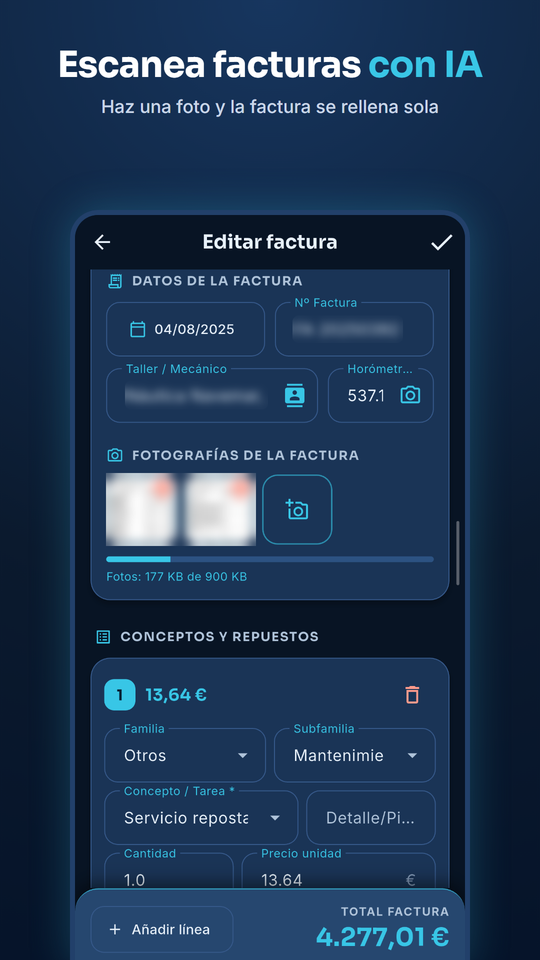
Invoices: line by line (category, item, part, quantity, price, discount and service life in hours). If you enter the service life, the maintenance reminder for that part is created or updated automatically.
Scan invoice with AI: in a new invoice tap "Scan invoice with AI" and choose how: Camera (for several pages, tap "Add another page" after each photo; up to 4), Gallery (choose up to 4 pages at once) or PDF (the invoice the boatyard emailed you). All pages are read together as one invoice and count as one scan. In a few seconds the number, date, boatyard and lines are filled in, with the category and subcategory chosen from your own lists; VAT goes on a separate line so the sum matches the total. The pages are attached to the invoice.
Category, subcategory and item: you can type directly in the field or open the arrow to choose from your list. The first option, "Add new…", lets you type a new one; it is saved in your list straight away for this and future invoices.
Long invoices or invoices in two parts: the AI summarises the explanatory text into short items. If one page has the amount with a general description and another the parts breakdown, it uses the breakdown; if the breakdown has no prices, it puts the amount on the general line and the parts at €0 (so they appear in your parts history) and warns you.
My items: your items are the link between all boatyards. You understand "Anodes"; a dealer writes the manufacturer part number ("865182Q01"), another shop its own code ("1270473") with the number inside the text, and another just "ANODE KIT". When scanning, the AI separates the manufacturer number, the shop code and a clean description (it expands abbreviations and translates text in other languages).
When you save, each line links itself if you already know its manufacturer number (at any chandlery), its code at that same shop or its description. New lines appear in "Which of your items does this match?" with a suggestion: the one recognised by the AI, one with a similar description or a short new name. In each you can type whatever you like: you will see your matching items to choose with one tap, and if it doesn't exist you'll see "New item will be created". "Accept all" saves all the suggestions at once. What it learns is remembered for the next invoice.
To correct, go to menu › My items: when you open one you see its manufacturer numbers, each shop's codes, its parts and boatyard descriptions; tap one to move it to another item, remove it with ✕, rename it or merge it with another item. Statistics are corrected retroactively too.
Boats with several engines: each invoice line has an "Engine" selector: Whole boat (hull, electronics, VAT…), a specific engine or "Split between engines". When splitting, units are divided equally (8 spark plugs = 4 + 4) and the amount proportionally; if it isn't half and half, change each engine's units (e.g. 4 anodes: 1 to port and 3 to starboard) or tap "Split equally" to go back. Above it you will see "4 units in the line · split 1 + 3 = 4": if it doesn't add up it turns amber and won't let you save until fixed. When scanning, the AI assigns the engine if the invoice says so (port, starboard, serial number, "both engines") and asks you about the lines that don't: in that same dialog you see each line's quantity and amount, choose the engine or split the units, and "Apply" only becomes active when all lines add up (otherwise it tells you which line is missing). If a line with a service life goes to several engines, a maintenance reminder is created for each one, with its engine's hour meter.
Check before saving: anything the AI couldn't read with certainty appears in the yellow box "Check this before saving", which also warns if the sum of the lines doesn't match the total and shows the boatyard's tax ID and phone. Nothing is saved until you tap Save, and you can correct any field.
For a good reading: good light, the whole invoice flat in the photo and no glare. It needs an internet connection; without signal, fill in the invoice by hand as always.
Scans available: 10 during the trial month and 100 a month with the subscription (the counter resets on the 1st). After each scan the app tells you how many you have left. A photo that isn't an invoice doesn't use a scan.
Privacy: the photo is sent encrypted to an artificial intelligence service only to read the invoice; it is not used to train the AI.
Invoice photos: below the photos you will see "Photos: X KB of 900 KB". If no more fit, the app tells you and you can save the rest in another invoice. Before saving, the total size is checked without losing what you typed.
Offline: you can save invoices, faults and reminders without signal; they upload automatically when it returns.
Request a quote: from a reminder or fault, create a PDF with the boat's details and photos to send to the boatyard.
Related guides
← PreviousManual contentsNext →
📄 Download the manual as PDF (to print)
Try BitacoraBit free for 30 days
Have a question that is not here? Write to us at info@bitacorabit.com