 BitacoraBit
🌐 ES · EN · FR · IT · DE · PT · RU
Chapter 01
Boats and fleet
Chapter video
🎬 Video coming soon: we are filming it on board.
What it's for: it brings together the paperwork, dimensions and technical data of your boats.
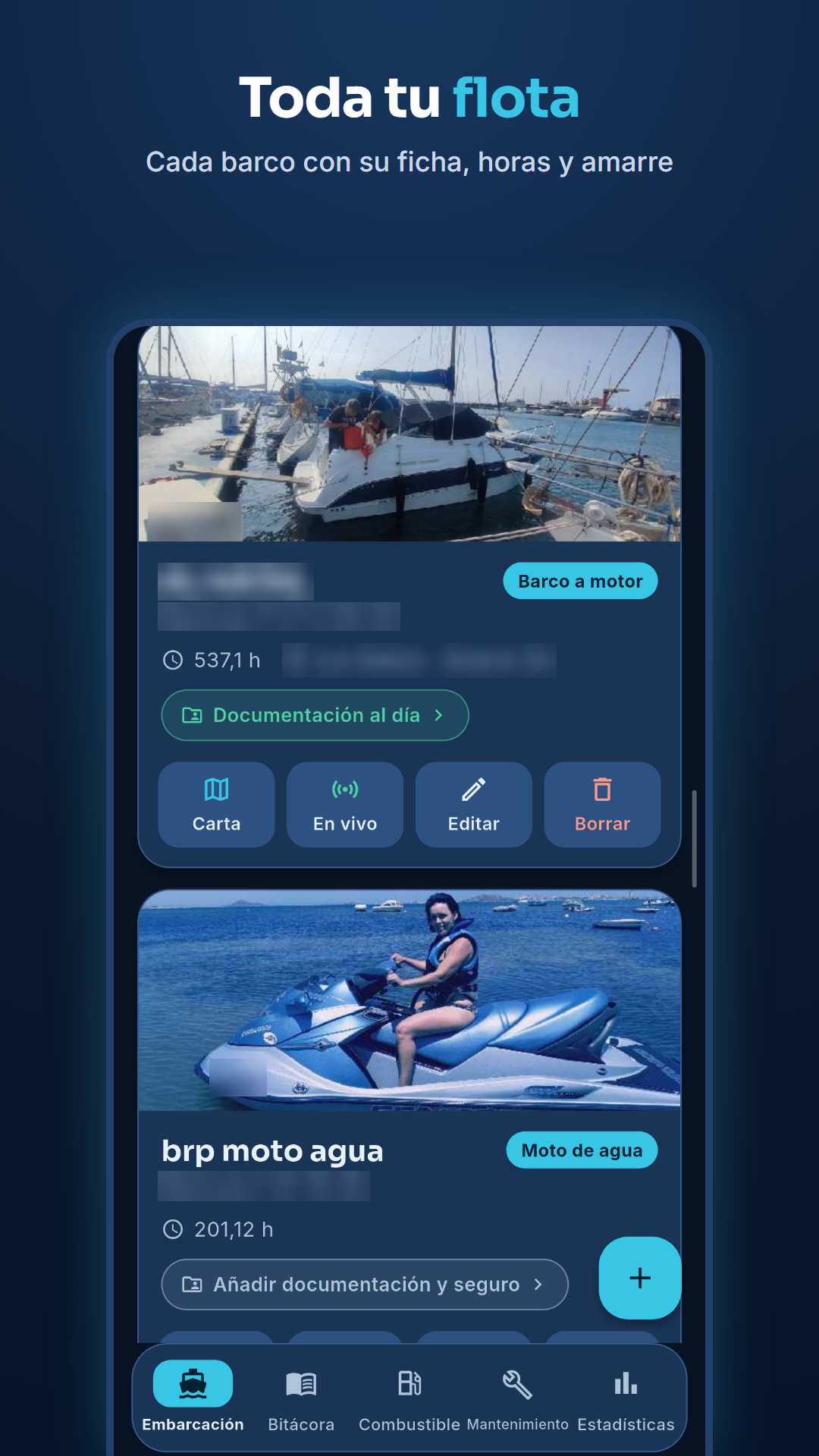
Fleet summary: at the top you see how many boats you have, their total engine hours and pending services (maintenance reminders overdue or due within 15 h). Tap "services due" to go straight to Maintenance.
Add a boat: tap "+" and enter the name, registration number, flag state, type (motorboat, sailboat, RIB or jet ski), dimensions, hour meter, owner/skipper, port, pontoon, berth and, if you like, engine and electronics. The photo is optional: without one, an illustration matching the type is shown. Only the name is required.
Scan the Spanish ship register: in the boat form tap "Scan Spanish ship register with AI" and take a photo of the register sheet (or choose the PDF). The name, registration number, dimensions and all the register sections fill themselves in. Check and save: the sheet is also stored in Documents. For privacy, owners' tax or ID numbers are never stored.
Register sections (collapsed, all optional): Registration details (maritime province and district, list, folio, flagging, navigation licence…), Identifiers and classification (call sign, NIB, SOLAS…), Construction (builder, year, hull ID number, material), Capacities and tonnage (depth, people, max. power, displacement, load, GRT, GT…), Installed engines and Owners. Tap a section to open it; the subtitle shows how many fields are filled in.
Several engines: in "Installed engines" tap "Add engine". For each one: make and model, type, year, engine and drive serial numbers, power (enter kW or hp and the other is calculated), code and range.
Position of each engine: with several engines, say whether it is port, starboard or centre. The app calls them by name ("Port engine") and the AI recognises them better on invoices.
Hour meter per engine: with two or more engines, each has its own hour meter (inside its section, also with the camera) and the boat's hour meter becomes the highest of them. When you finish a passage on the chart, its hours are added to every engine. In Maintenance, each reminder can be linked to an engine ("Engine 1", "Engine 2"…) and counts that engine's hours.
Hour meter with the camera: the camera icon in the Hour meter field reads the meter (roller or digital). It shows you the reading to confirm and warns you if it is lower than the previous one or jumps by more than 200 h. The first time it asks how your meter reads (no decimals, tenths 1/10 or hundredths 1/100) using the digits in the photo, e.g. 53294 / 5329.4 / 532.94 h, and recommends the option that fits the last reading. Your choice is remembered for that boat; if you get it wrong, tap "Change decimals" when reading. You will also find it in refuelling, manual trips and invoices.
Documents and insurance: each card shows the status of your paperwork ("Documents up to date", "1 document to renew"…). Tap it to open the list: insurance, seaworthiness certificate or inspection, radio licence, liferaft and fire extinguisher services, flares and any other document. All your paperwork in one place, including the ship register sheet. Tap "Add" › "Scan document with AI": the AI recognises which document it is. If it is the register sheet, it offers to fill in the boat details with its data and stores the sheet here. For any other document, scan it with AI (photo or PDF) or fill it in by hand: insurer or issuing body, number, expiry date and photos. For insurance, also the insurance type, excess and assistance phone, which you can call with one tap.
Expiry warnings: amber when 30 days or less are left and red once it has expired. If something needs renewing, a warning also appears below the fleet summary.
Buttons on each card: Chart (opens the nautical chart with that boat), Live (boat sensors, see chapter 03), Edit and Delete.
Details and PDF certificate: tap the card to see the full details by section. From there, "PDF certificate" creates the technical report for the harbour office or boatyards; if you have filled in register data, it goes on a second page.
Deleting a boat: all its trips, refuelling, invoices, reminders, faults and documents are deleted too. Before deleting, the app tells you exactly how many records will be removed. It needs an internet connection so every step is confirmed and no loose data is left behind. This cannot be undone.
Delete my account: in the menu, below "Sign out" (also on the subscription screen). Your account, all your boats with their data and photos, your items and your settings are deleted. It asks for your password to confirm and needs a connection. This cannot be undone. Note: deleting the account does not cancel the subscription; cancel it in Google Play > Payments & subscriptions.
Promo code: if your club, marina or a promotion gave you a code, enter it when you sign up or later in the menu (☰) > Redeem code. It extends your free trial by the days it says (if the trial had already ended, they count from today). Only one code per account. On iPhone, Apple's window for offer codes opens.
Related guides
📄 Download the manual as PDF (to print)
Try BitacoraBit free for 30 days
Have a question that is not here? Write to us at info@bitacorabit.com